
iPhone battery draining fast is the modern-day equivalent of watching your lifeline fade away before lunch. I remember a crucial video call last month where my screen went black at 30%—right as I was about to present. That sinking feeling is universal, and it signals that something needs to change. But what if the solution isn’t just another charger? Let’s explore why this happens and, more importantly, how to stop it for good.
The Immediate Rescue: Fixes That Work in Minutes
We’ve all been there. You unplug your phone with 100%, and two hours later, it’s gasping for power at 40%. This rapid iPhone battery draining fast scenario often stems from a few common culprits that are surprisingly easy to tame. I once traced my own midday battery crisis to a single social media app running wild in the background, chewing through power while my phone was in my pocket. Let’s tackle these quick wins first.
Identify and Eliminate the Battery Vampires
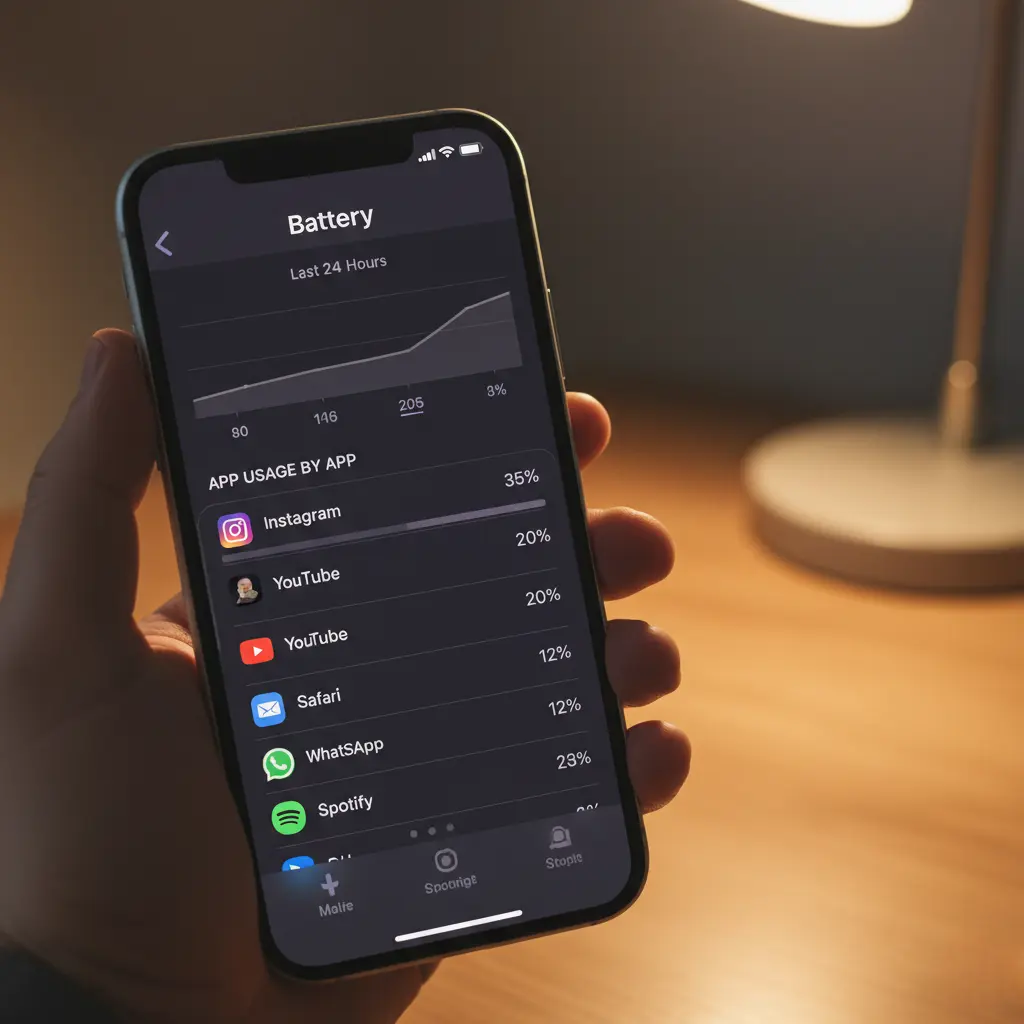
Your first stop should always be Settings > Battery. This section is a treasure trove of insights. It shows your battery usage over the last 24 hours or 10 days, breaking down exactly which apps are the most power-hungry. Look for two things:
- Disproportionate Drain:If an application consumes two-fifths of your charge but you’ve barely had the screen on, that’s a major warning sign.
- Background Activity: This label means the app is consuming power even when you’re not actively using it.
My discovery? A weather app was using constant location services in the background. Once I adjusted its settings, I clawed back hours of life. Checking this regularly is the single most effective habit to prevent your iPhone battery from draining fast.
Master Your Screen Brightness and Timeout
The display is your iPhone’s biggest power consumer. An excessively bright screen is a primary reason for an iPhone battery draining fast. Here’s a dual approach:
- Enable Auto-Brightness: Head to Settings > Accessibility > Display & Text Size and ensure “Auto-Brightness” is ON. This lets your iPhone intelligently adjust to ambient light.
- Adjust Auto-Lock for Faster Sleep:Navigate to Settings > Display & Brightness, tap ‘Auto-Lock,’ and select the shortest duration you’re comfortable with, like 30 seconds. This simple change prevents your display from staying on unnecessarily, which directly counters a fast iPhone battery drain.
I made this change and noticed my phone no longer stayed brightly lit for minutes after I’d set it down. It’s a simple setting with a profound cumulative impact on stopping a fast iPhone battery drain.
The Nuclear Option: Force Restart
When your iPhone is acting sluggish and the battery is draining fast for no apparent reason, a software glitch may be to blame. A force restart (sometimes called a hard reset) clears the device’s memory without deleting any data.
- iPhone 8, SE (2nd/3rd gen), and later: First, press and release the Volume Up button. Next, press and release the Volume Down button. Finally, press and hold the Side button until the Apple logo appears on the display.
- For iPhone 7: Hold the Side and Volume Down buttons together.
- For iPhone 6s and earlier: Hold the Home and Side (or Top) buttons together.
This is the digital equivalent of a deep breath for your device. I recommend doing this monthly as routine maintenance.
Best Guide on iPhone Battery Draining Fast? 15 Proven Fixes That Actually Work
Watch this helpful video for a visual walkthrough of the quick settings changes you can make to see an immediate difference in your battery performance
Smarter Settings for Sustained Battery Health
Once you’ve handled the immediate threats, it’s time to optimize your iPhone’s environment. Think of this as building better daily habits for your device. A consistently fast draining iPhone battery is often a symptom of many small energy leaks adding up. By adjusting these foundational settings, you create a power-efficient foundation.
Tame Background App Refresh
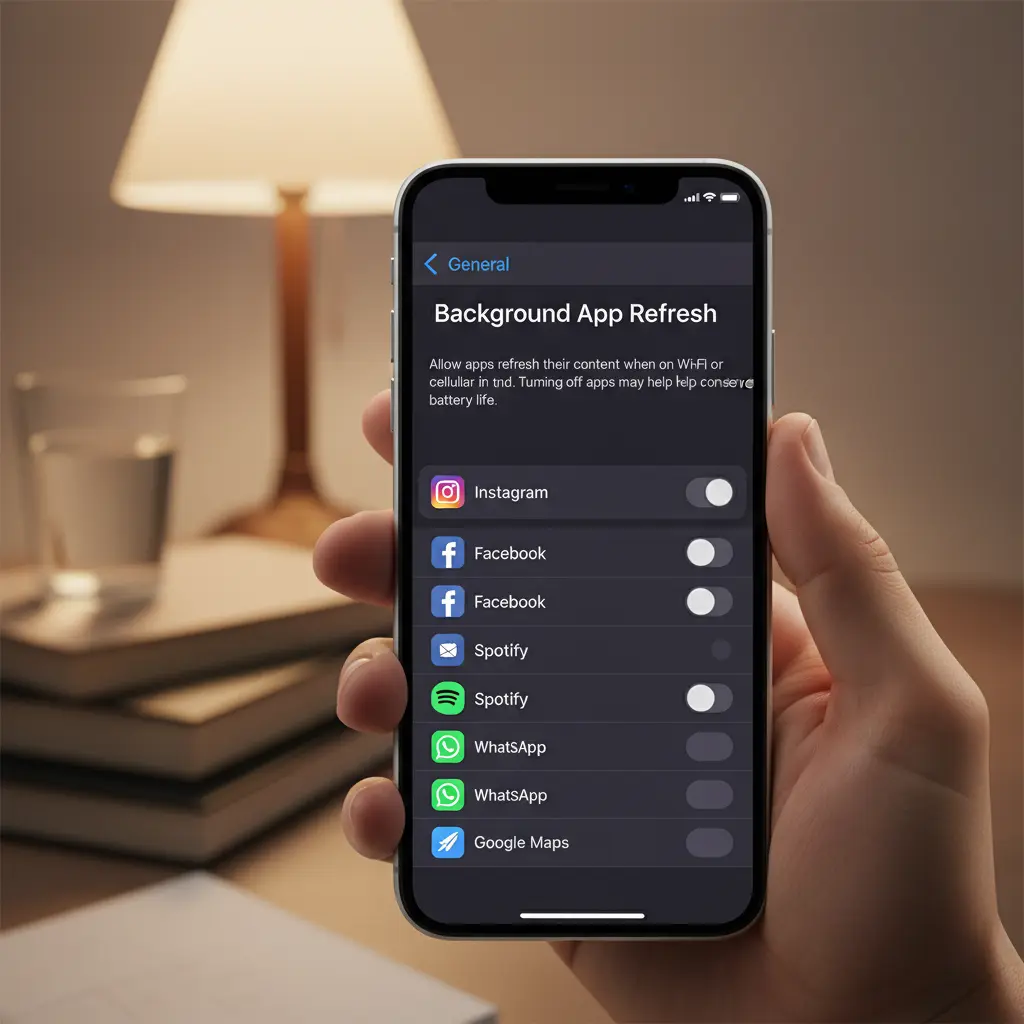
Apps can use this feature to refresh themselves when you open them by updating their content in the background. The downside? It can be a major cause of iPhone battery draining fast. You don’t need every app to have this privilege.
- Go to Settings > General > Background App Refresh.
- You can turn it OFF entirely, or (my preferred method) set it to “Wi-Fi” only, or selectively disable it for notorious battery hogs like social media, email, and news apps.
I honestly wish I had learned this earlier—turning this off for most apps saved me from constant charging and made no noticeable difference to my experience except longer battery life.
Optimize Location Services
GPS is another significant power draw. While essential for Maps, it’s overkill for many other apps.
- Start in Settings: Launch the Settings application on your iPhone. Then, tap to enter the ‘Privacy & Security’ menu, and finally select ‘Location Services. Within that menu, you’ll find the Location Services
- Review each app. Set apps to “While Using the App” instead of “Always.” For apps like weather, “Ask Next Time Or When I Share” might be sufficient.”
- Set apps to “While Using the App” instead of “Always.” For apps like weather, “Ask Next Time Or When I Share” might be sufficient.
- Scroll to the bottom and tap System Services. Consider turning off “iPhone Analytics” and “Routing & Traffic” unless you need them.
This granular control prevents your phone from constantly pinging satellites, which is a surefire way to slow down a fast iPhone battery drain.
Manage Push Notifications and Fetch
Every time your screen lights up for a notification, it uses power. An avalanche of notifications accelerates iPhone battery draining fast.
- Notifications: Go to Settings > Notifications. Disable non-essential notifications, or tailor them to deliver quietly (without lighting up the screen).
- Mail Fetch: If you use the native Mail app, go to Settings > Mail > Accounts > Fetch New Data. Changing “Push” to “Fetch” and setting fetch to “Hourly” or “Manually” drastically reduces how often your phone checks for new emails in the background.
Imagine your phone constantly reaching out to servers versus checking in once an hour. The energy savings are substantial.
Advanced User Tactics and Hardware Checks
Sometimes, the issue goes deeper than settings. If you’ve tried everything and your iPhone battery is still draining fast, it’s time to look at usage patterns, software integrity, and physical hardware. This is where we separate persistent habits from potential defects.
Analyze and Update Your iOS Version
Apple routinely releases iOS updates that include performance improvements and battery optimizations. Running outdated software can contribute to a fast iPhone battery drain.
- Go to Settings > General > Software Update. Install any available updates.
- Important: Before updating, ensure you have a recent iCloud or computer backup. A major update can sometimes resolve deep-seated software glitches causing excessive battery drain.
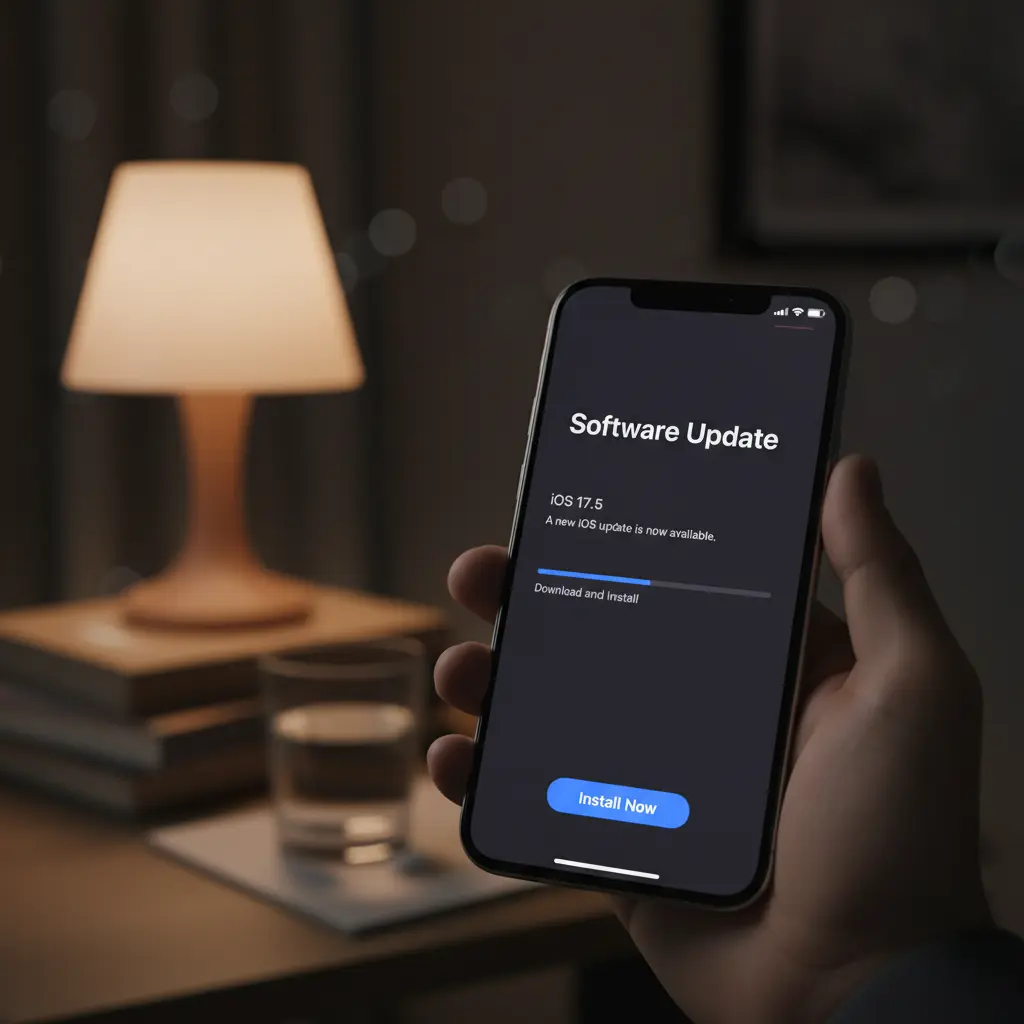
I make it a habit to check for updates every few weeks. It’s a cornerstone of good digital hygiene.
The Low Power Mode Strategy
Low Power Mode isn’t just for emergencies. It’s a brilliant tool for proactive management when you know you’ll be away from a charger. It reduces background activity, visual effects, and performance.
- You can enable it manually via Settings > Battery or ask Siri.
- Pro Tip: You can add a Low Power Mode shortcut to your Control Center for instant access. Go to Settings > Control Center and add it.
Using Low Power Mode during a long commute or afternoon outing can be the difference between a dead phone and making it home comfortably. It’s a powerful lever to pull against a fast draining iPhone battery.
When to Suspect a Failing Battery
All lithium-ion batteries degrade over time. Settings > Battery > Battery Health & Charging shows your battery’s “Maximum Capacity.” Apple states that a normal battery is designed to retain up to 80% of its original capacity at 500 complete charge cycles.
- Below 80%: You will likely experience significantly shorter battery life and more frequent iPhone battery draining fast incidents. This is the primary sign you may need a replacement from Apple or an authorized service provider.
- Peak Performance Capability: This section will also notify you if your battery is no longer supporting peak performance, which can cause unexpected shutdowns.
Replacing an aged battery feels like getting a brand new phone. It’s often the most effective single action you can take.
Reader Question: What’s the one app that always seems to be at the top of your battery usage list?
Your Action Plan: A Summary of Key Fixes
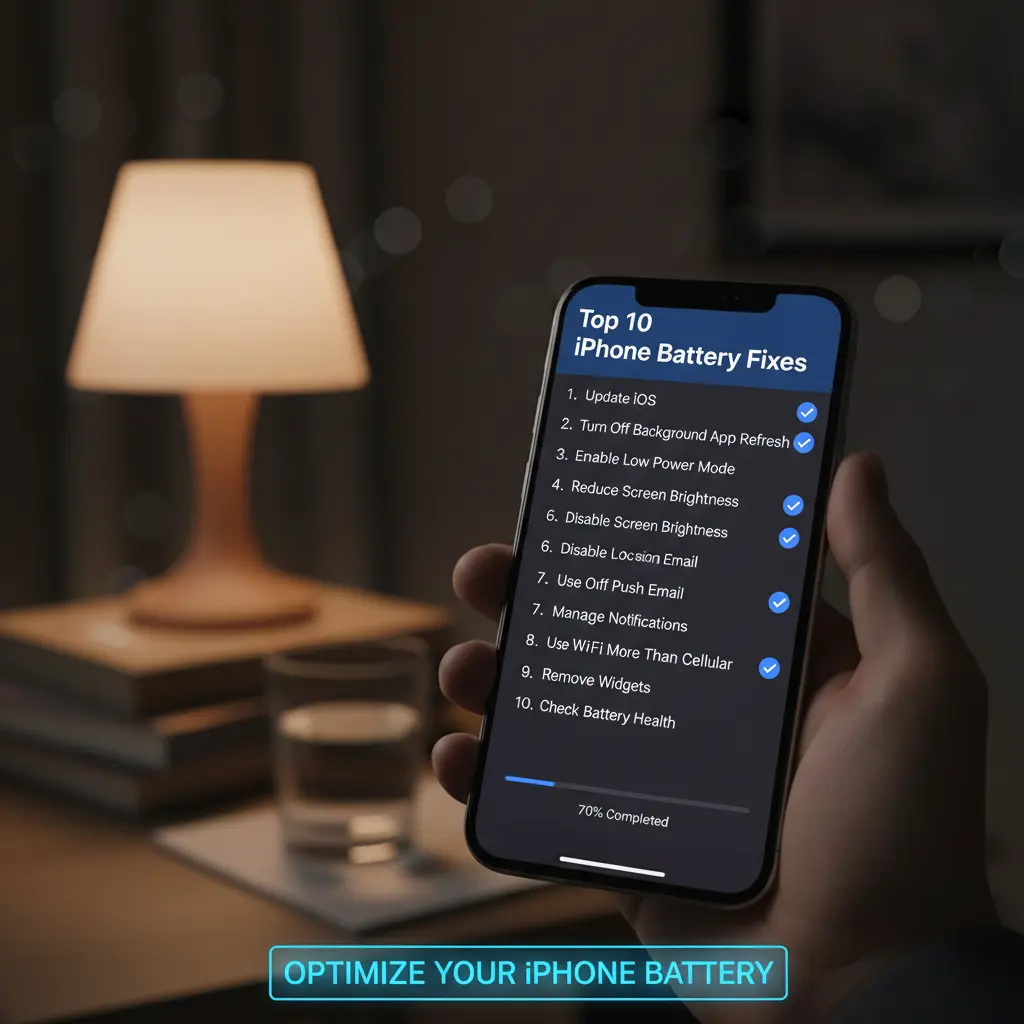
To make implementation effortless, here is a consolidated checklist of the most impactful actions. Tackling these will create a multi-layered defense against an iPhone battery draining fast.
- Diagnose First: Check Settings > Battery for app-specific iPhone battery draining fast issues.
- Dim and Shorten: Use Auto-Brightness and set Auto-Lock to 30 seconds.
- Restart Regularly: Perform a monthly force restart to clear glitches.
- Control Backgrounds: Disable Background App Refresh for non-essential apps.
- Refine Locations: Set most apps to “While Using” for Location Services.
- Curb Notifications: Turn off unnecessary alerts to prevent screen wake-ups.
- Update iOS: Always run the latest software for optimal efficiency.
- Embrace Low Power Mode: Use it proactively during long days.
- Check Battery Health: If capacity is below 80%, consider a replacement.
A Final Thought on Power and Peace of Mind
Dealing with an iPhone battery draining fast is more than a technical annoyance—it’s about reclaiming reliability in your daily life. The frustration of a dead phone when you need maps, a payment method, or a connection is all too real. By combining these quick adjustments with smarter long-term habits, you transform your device from a power-hungry gadget into a dependable tool.
Remember, the goal isn’t to never charge your phone; it’s to have confidence that it will last as long as you do. Start with the battery usage stats today—what’s the one surprising app you find? Share your biggest battery-saving discovery in the comments below, and if this guide helped, why not pass it on to a friend who’s constantly hunting for an outlet?
Ready to explore more ways to master your tech? Find your next read over on the BlogTime homepage. We’re glad you’re here.
FAQs: iPhone Battery Draining Fast
Q1: Why is my iPhone battery draining fast all of a sudden?
A sudden onset of iPhone battery draining fast is often caused by a software glitch, a recent app update that’s misbehaving, or a change in your location services usage. A force restart and a check of your Battery settings (Settings > Battery) to identify any new app culprits is the best first step.
Q2: How can I check what’s causing my iPhone battery to drain so quickly?
Your iPhone has a built-in diagnostic tool. Go to Settings > Battery to view battery usage by app over the last 24 hours or 10 days. This screen will clearly show if a specific app is responsible for the rapid battery drain, especially if it shows high “Background Activity.”
Q3: Will updating iOS fix a fast draining iPhone battery?
Yes, frequently. iOS updates regularly include battery performance optimizations and bug fixes. If your iPhone battery is draining fast after a recent update, a subsequent update often resolves it. Always ensure your iPhone is running the latest version of iOS via Settings > General > Software Update.
Q4: Should I leave Low Power Mode on all the time to prevent fast battery drain?
While you can, it’s not necessary for daily use if you’ve optimized your settings. Low Power Mode is a fantastic tool for extending battery life when you know you’ll be away from a charger, but it disables some background features. For chronic iPhone battery draining fast issues, address the root causes in settings first.
Q5: My battery health is at 85%. Is this why my iPhone battery drains fast?
It can be a contributing factor. While 85% capacity is still decent, you may notice shorter battery life, especially with older iPhone models or heavy use. If you’re experiencing significant fast battery drain and your capacity is below 80%, a battery replacement is the most effective solution.