
iPhone overheating after iOS update is one of the most frustrating experiences. You’re just trying to use your phone, and suddenly it feels like a pocket-sized heater. You might even see that dreaded temperature warning. We understand that moment of panic because we’ve experienced it ourselves. Why does this happen right after you install the latest software?
Let’s walk through this together. We’ll break down exactly why your phone gets hot, give you clear steps to cool it down now, and show you how to prevent it for good. This is your complete, no-jargon roadmap to solving iPhone overheating after iOS update.
The Real Reason Your iPhone Feels Hotter Now
I remember updating my own phone, excited for the new features. An hour later, I couldn’t even hold it to my ear for a call. It wasn’t just warm; it was hot. This is more common than you think after an update, and it’s usually not a hardware flaw.
Your iPhone is essentially “settling in” after a major change. The update process itself is intensive.
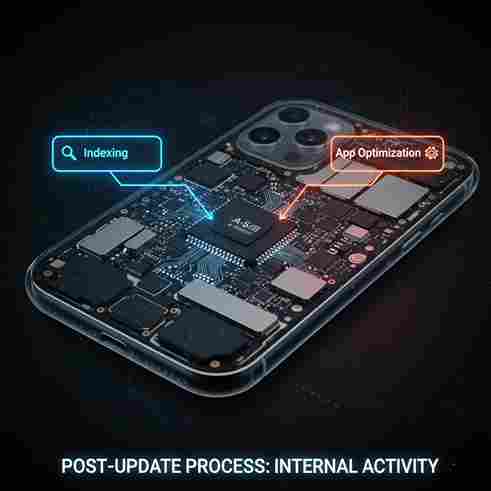
Then, behind the scenes, your phone is re-indexing files, re-optimizing apps, and performing system tasks. It’s like your phone’s brain is working overtime in a cramped room. This intense activity, especially if it hits a snag, is the primary cause of iPhone overheating after iOS update. The processor is working hard, and that generates heat.
How to Distinguish Between Typical Behavior and a Cause for Concern
Not all warmth is a crisis. Your phone will get warm during heavy use. But here’s the difference:
- Normal: Feels warm during gaming, video streaming, or GPS use.
- Problematic (iPhone overheating after iOS update): Feels unusually hot during light tasks (texting, browsing), the screen dims on its own, charging slows or stops, or you get a temperature alert.
Your First 5-Minute Cool-Down Steps (Do This NOW)
When you first notice the iPhone overheating after iOS update, don’t panic. Follow these immediate actions. I’ve used this exact sequence more times than I can count.
- Remove the Case: This is step one. Your case traps heat. Taking it off lets your iPhone dissipate heat much faster.
- Move to a Cooler Spot: Get out of direct sunlight. Move away from hot cars, windows, or heaters. A cool, shaded, room-temperature area is perfect.
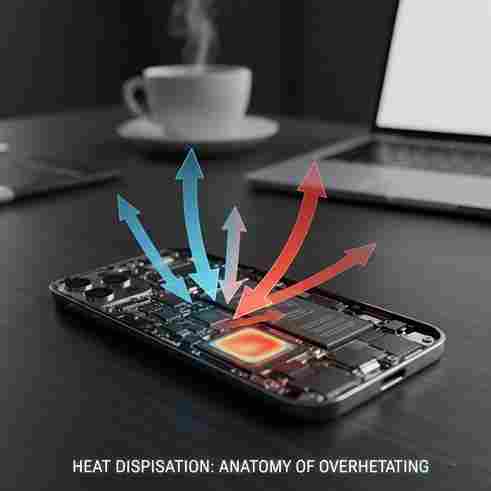
3. Stop Using It: I know it’s tempting to check why it’s hot, but put it down on a flat, hard surface (like a table). Soft surfaces like beds or sofas block vents.
4. Turn Off Intensive Features: Swipe down for Control Center and turn off Bluetooth, Mobile Data (use Wi-Fi if needed), and lower your screen brightness.
5. Avoid the Fridge: Never put your hot phone in a freezer or fridge! The rapid temperature change can cause internal condensation and severe damage.
When to Let It “Cook” (The 48-Hour Rule)
After a major update, give your iPhone up to 48 hours of normal use (plugged in overnight on Wi-Fi is ideal) to finish its background work. Many cases of iPhone overheating after iOS update resolve on their own during this period. If it’s still excessively hot after two days, it’s time for the next steps.
Deep Fixes: Stopping the Overheating for Good
If the quick fixes didn’t solve it, we need to look deeper. The goal is to identify the rogue process causing your iPhone overheating after iOS update. Let’s play detective.
Tame the Background App Chaos
Background App Refresh lets apps update when you’re not using them. After an update, this can go haywire. Here’s how to control it:
- Navigate to Settings, select General, then choose Background App Refresh.
- You have the option to disable this feature entirely, or configure it to function only when connected to a Wi-Fi network.
- Even better, scroll through the list and disable it for non-essential apps (social media, games, news). Keep it on for messaging and navigation apps you rely on.
Check Your Battery Health
An aging battery works harder and generates more heat. Open your Settings, tap on Battery, and then select Battery Health. If “Maximum Capacity” is below 80%, your battery is significantly degraded and may struggle with new software demands, contributing to iPhone overheating after iOS update. A battery replacement might be your best solution.
The Nuclear Option: A Clean Restore
Sometimes, the update file itself gets corrupted during installation. The most powerful fix is to restore your iPhone using a computer. This installs a fresh, clean copy of iOS.
- Back up your iPhone to iCloud or your computer.
- Connect to a Mac or PC and open Finder (Mac) or iTunes (PC).
- Put your iPhone in Recovery Mode.
- Choose “Restore.” This will wipe and reinstall iOS.
Set up your phone and restore from your backup.
YouTube Video: Best Guide on iPhone Overheating After iOS Update
This video clarifies the steps, making a potentially technical fix feel much easier.
Prevention & Best Practices: Keep Your iPhone Cool
Solving the current iPhone overheating after iOS update is great, but let’s make sure it doesn’t come back. These habits make a huge difference.
Smart Charging Habits
Charging generates heat. Avoid these common mistakes:
- Don’t use thick cases while charging. Take it off if you notice heat.
- Never use your phone intensively while charging (gaming, video calls).
Use certified chargers and cables. Cheap, uncertified ones can cause improper charging and excess heat.
Manage Location Services
GPS is a major battery and heat drain. Review which apps always have access.
- You can update your location preferences by opening Settings, going to Privacy & Security, and tapping on Location Services..
- For most apps, set them to “While Using” instead of “Always.” Turn it off entirely for apps that don’t need it (like games or utilities).
Update Apps Individually
After a big iOS update, wait a week before doing a mass app update. App developers often rush out compatibility patches. Updating 30+ apps at once can cause a huge processing spike and lead to iPhone overheating after iOS update. Update your critical apps first, then others over time.

When It’s Not the Software: Hardware Checks
Rarely, iPhone overheating after iOS update can reveal a hidden hardware issue that the new software stresses more. Let’s rule these out.
- Damaged Battery: As mentioned, a swollen or damaged battery is a serious issue. If your phone case is bulging or the screen is separating, stop using it immediately and seek service.
- Faulty Charging Port or Cable: Inspect your charging port for lint and your cable for fraying. A short circuit here can cause overheating. According to experts at iFixit, a clean port is crucial for safe operation.
- Environmental Factors: Do you live in a very hot climate? Consistently high ambient temperatures push your iPhone’s cooling system to its limit.
I honestly wish I had learned these hardware checks earlier—it would have saved me an unnecessary repair scare.
Your Questions Answered
“When does an overheating iPhone cross the line from a simple annoyance to a genuine safety hazard?”
If you see the temperature warning screen, the phone has shut down to protect itself. Follow the cool-down steps immediately. Persistent overheating over days can accelerate long-term battery degradation.
“Will restoring my iPhone delete everything?”
It will if you don’t back up first. Always secure a recent iCloud or computer backup before a restore. After this, you can retrieve your complete set of data and personal configurations.
Conclusion: Take Back Control of Your iPhone’s Temperature
Dealing with iPhone overheating after iOS update can feel overwhelming, but it’s almost always a solvable software issue. Start with the simple, immediate steps. Give it a little time to settle. Then, systematically work through the settings and deeper fixes we outlined. Remember, your phone is smart, but sometimes it needs a little guidance after a big change.
“For more helpful guides like this, you can visit our homepage at
👉 https://www.expresstecno.com and explore what we’re building for you.”
FAQs About iPhone Overheating After iOS Update
- How long does iPhone overheating after iOS update typically last?
It’s usually temporary. Most background processes settle within 24-48 hours. If your iPhone overheating after iOS updatepersists beyond two full days, it likely requires manual troubleshooting using the steps in our guide. - Is it dangerous? Could it damage my phone?
Modern iPhones have safety mechanisms that will automatically shut down if temperatures get critically high. While occasional warmth is normal, prolonged and excessive iPhone overheating after iOS updatecan accelerate long-term battery wear, so it’s best to address it promptly. - What’s the fastest way to cool it down right now?
Immediately remove the case, stop using the phone, and move it to a cool, shaded surface. Avoid extreme cooling methods like putting it in a fridge, as this can cause condensation damage. This quick action often resolves minor iPhone overheating after iOS update. - Does this mean I have a hardware problem?
Not necessarily. In most cases, iPhone overheating after iOS updateis a software-related issue caused by intensive post-install tasks. However, if the problem continues after all software fixes, it could reveal an underlying hardware problem like a degraded battery.