
Funny thing, I used to think my phone was just for texting, scrolling, and the occasional dramatic photo of my coffee. Honestly, I had this powerful computer in my pocket and was using about 10% of its brain. Sound familiar?
Then, I started noticing little things. My photos were automatically getting better. My keyboard was predicting my thoughts.
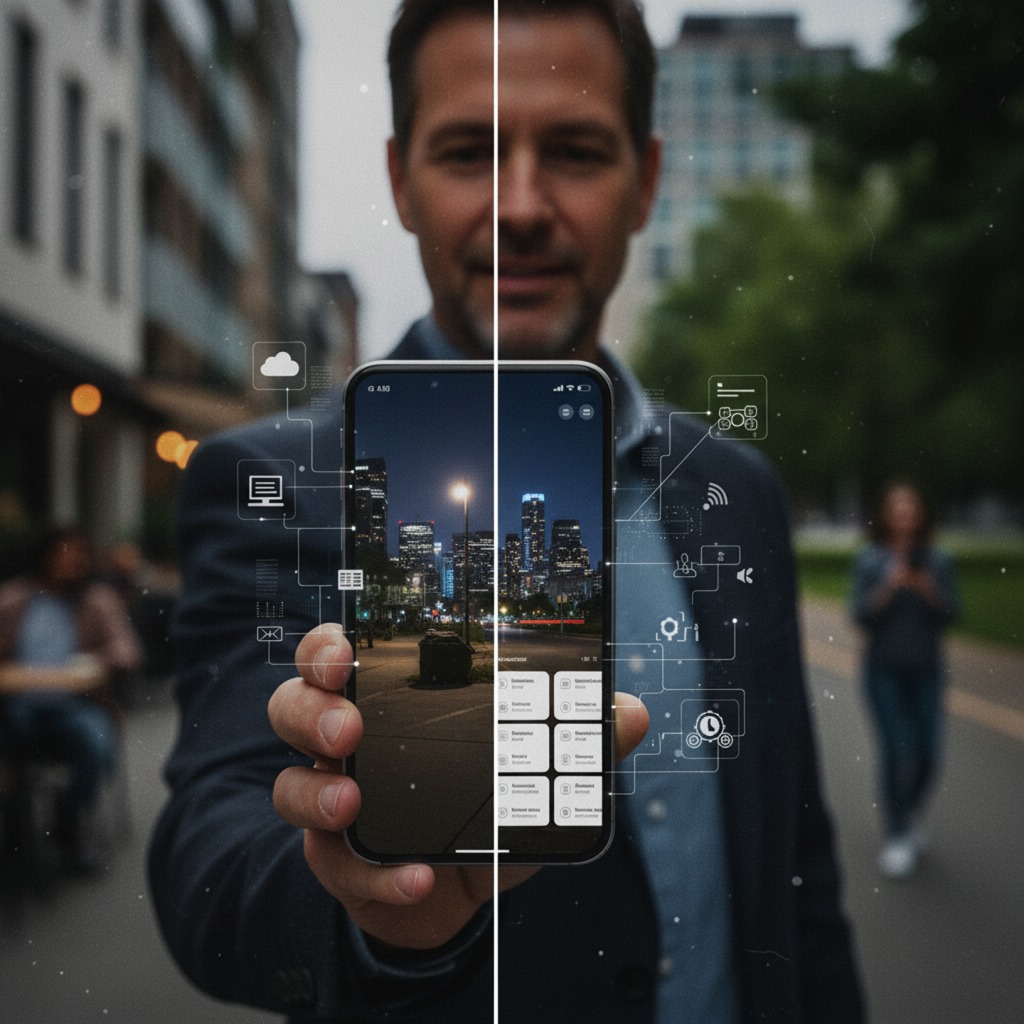
It felt a bit like magic, until I realized what was happening: AI on your phone was doing the heavy lifting. And once I figured that out, the whole thing modified. You’ll see what I mean.
So, how do you use AI on your phone without needing a degree in computer science? It’s easier than you think. Let’s dive in.
What Does "AI on your Phone" Even Mean? {#what-is-phone-ai}
Let’s get this out of the way first. I’m not talking about a sci-fi robot living in your device. When we talk about using AI on your phone, we’re talking about software that can learn, predict, and perform tasks in a way that mimics human intelligence.
Think of it as a super-smart assistant that learns your habits. It knows you take a lot of pictures of your dog, so it automatically creates albums. It notices you continually text “I’m on my way!” at 5:30 PM, so it suggests that phrase. This AI on your phone isn’t one single app; it’s woven into almost everything you do. It’s the secret sauce.
Your Camera is a Genius: Photo & Video Magic {#ai-camera}
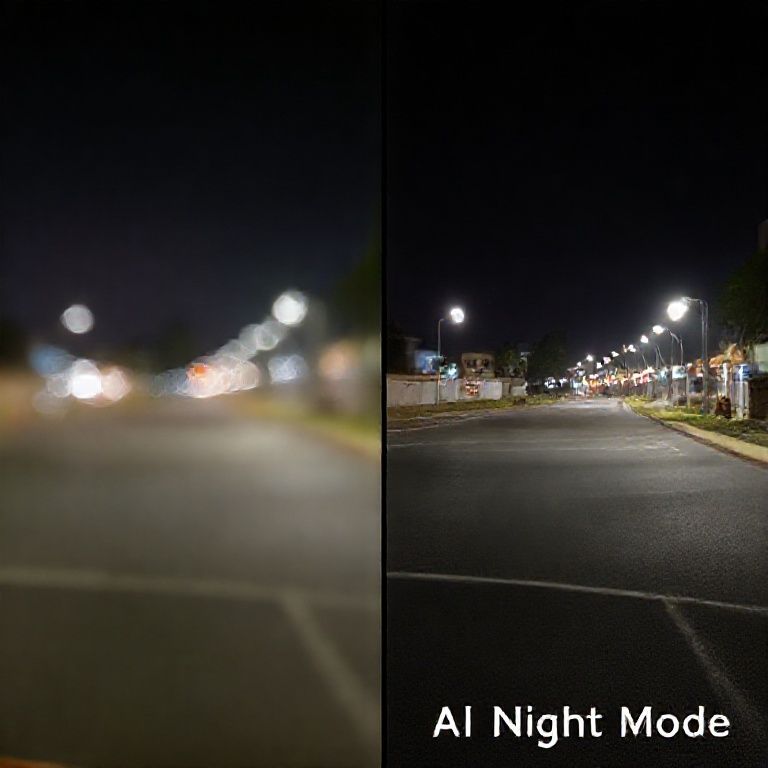
This is where most of us first encountered powerful AI on your phone. I remember trying to take a picture of a city skyline at night and getting a blurry mess. Now? My phone can make it look like I used a professional camera. Here’s how the AI on your phone is working behind the scenes.
Night Mode: Seeing in the Dark {#night-mode}
When you enable Night Mode, your phone doesn’t just take one picture. It takes a burst of photos at different exposures. The AI on your phone then analyzes all of them, identifies the blurry parts (like your shaky hands), aligns the images, and merges them into one crisp, bright, and stunning final shot. It’s like having a photo editor built right in.
Portrait Mode: Blurring the Background Like a Pro {#portrait-mode}
Portrait mode uses AI to identify the subject (a person, a pet, a flower) and separate it from the background. It then artificially blurs that background (creating a “bokeh” effect) to make the subject pop. The sophistication of this AI on your phone is incredible—it can even handle tricky things like wisps of hair or glasses frames.
Your Keyboard is Psychic (And It Saves You Time) {#ai-keyboard}
Ever notice your keyboard suggesting your email address as soon as you type the first letter? Or predicting the entire word you’re about to type? That’s AI on your phone in action. Apps like Gboard or SwiftKey learn from your personal writing style. The more you operate it, the higher it gets. It can even suggest emojis based on the text you’ve written. I honestly don’t know how I’d manage my group chats without it.
Your Voice Assistant is Your New Best Friend {#voice-assistant}
“Hey Siri,” “Okay Google,” or “Hey Bixby.” We use them to set timers, but they can do so much more. This is a prime example of using AI on your phone for true convenience.
- Routines: You can set up a “Good Morning” routine that tells you the weather, reads your calendar, and starts a news podcast—all from one command.
- Smart Control: “Turn off the dwelling room lighting,” “Set the thermostat to seventy two degrees.” If you have clever home gadgets, your voice assistant is the manipulate middle.
- On-the-Go Info: “How many ounces in a cup?” or “What’s the capital of Mongolia?” It’s faster than typing.
I wish someone had told me earlier how much time I’d save by just talking to my phone.
Smarter Browsing and Smarter Searching {#browsing-search}
The Google or Bing app on your phone is packed with AI. When you use Google Lens, you’re using AI on your phone to identify plants, translate street signs in real-time, or even copy text from a physical document into your phone. It’s like having a visual search engine.
Furthermore, your phone’s internal search is getting smarter. Searching for “that PDF from Sarah last week” will often pull up the correct file because the AI understands the context, not just the filename.
AI in Your Messaging and Social Apps {#messaging-social}
This one is huge. AI on your phone is deeply integrated into the apps we use most.
- Automatic Transcription: WhatsApp and other messaging apps can transcribe voice notes into text. Perfect for when you’re in a meeting.
- Smart Replies: Gmail and messaging apps suggest quick responses like “Sounds good!” or “On my way!” based on the message you received.
- Social Media Feeds: The algorithms that decide what you see on Instagram, TikTok, or Facebook are all powered by AI. They learn what you like and show you more of it.
The Future in Your Pocket: Advanced AI Apps {#future-ai-apps}
Now we’re getting into the really fun part. Dedicated apps are taking the concept of AI on your phone to a whole new level.
- ChatGPT / Google Gemini Mobile Apps: You can have full, conversational conversations with an AI, ask it to write emails, brainstorm ideas, or summarize articles, right from your phone.
- AI Art Generators: Apps like Midjourney (via Discord) or others let you type a description and generate a unique image in seconds. It’s creativity on demand.
- AI Music Tools: Create custom ringtones or short music clips from a text prompt.
The potential for using this advanced AI on your phone is literally limitless.
It’s like having a creative partner, a research assistant, and a personal organizer all in one.

Conclusion: Your Phone, Now Upgraded {#conclusion}
So, the next time you pick up your phone, remember it’s not just a device. It’s a hub of intelligence designed to make your life easier. You don’t need to be a tech whiz to start using AI on your phone; you’re probably already using it without realizing. The key is to start noticing these features and intentionally using them.
I’ve found that leaning into these tools has saved me hours each week and unlocked a level of creativity I didn’t know my phone possessed. What’s the first feature you’re going to try? Let me know in the comments which AI on your phone trick blew your mind!
Frequently Asked Questions (FAQs) {#faqs}
- Is using AI on your phone a privacy risk?
It can be, which is why it’s important to check your privacy settings. Most on-device AI (like photo processing) happens without sending your data to the cloud. For cloud-based AI (like voice assistants), review what data is stored and how it’s used. You can usually manage or delete this data. - Does using AI features drain my battery faster?
Yes, complex AI tasks like processing a Night Mode photo or using live translation can use more battery and processing power than simple tasks. The impact is usually short-term, but it’s something to be aware of. - Can I add more AI to your phone if it’s an older model?
Absolutely! Many of the best AI features come from apps you download, like ChatGPT or new keyboard apps. While the built-in camera AI might be better on newer phones, you can still supercharge an older model with intelligent apps. - What’s the easiest way to start using more AI on your phone?
Start with your camera and keyboard. Play with Portrait Mode and Night Mode. Turn on predictive text and see how it learns. These are the most seamless and immediately beneficial ways to experience AI on your phone. - Are there any costs associated with using phone AI?
Most built-in features (camera, keyboard, voice assistant) are free. Some advanced third-party apps, like certain AI art generators or pro versions of chatbots, may have subscription fees or premium tiers. - How is AI on my phone different from a computer?
The core technology is similar, but phone AI is optimized for mobility, on-the-go tasks (photos, quick info, messaging), and often uses a combination of on-device processing and cloud computing for speed and efficiency.